After a track day, upload your data logger file to LapBrain. Here's what happens, and what to look for.
Upload your file
Connect your data logger and sync your session data. LapBrain currently supports:
- AiM Solo 2 / Solo 2 DL: XRK and XRZ files via WiFi sync or manual export from Race Studio 3
- MoTeC: LD files (export from i2 Pro)
- RaceBox: synced from a nearby Mini S or Micro over Bluetooth in the LapBrain mobile app, or uploaded as a VBO file downloaded from the RaceBox website
If you use a Solo 2 or Solo 2 DL with a mobile device, the LapBrain app can sync directly over WiFi. Tap Sync and follow the prompts. On Android, the app finds the data logger. On iOS, your phone asks you to join the AiM network. A RaceBox Mini S or Micro can sync over Bluetooth from the same Sync screen.
To upload a file, open the LapBrain menu, choose Sessions, tap + in the Sessions panel header, then Choose files. Uploading works the same way in the mobile app and the web app. On a computer you can also drag files from your desktop onto the LapBrain window: the upload panel opens as soon as the files cross the window, even when the Sessions panel is collapsed, and dropping them on it starts the upload. Files LapBrain can't read are listed with the supported formats instead of being uploaded. For an existing RaceBox cloud session, open it under My Sessions in the RaceBox web app, choose Download session, then VBO, and upload the downloaded file. RaceBox Setup walks through it.
See the Data Logger Setup section for step-by-step instructions for your specific data logger.
Processing
Once uploaded, the session appears in your list with a progress indicator. Uploading keeps you where you are: new sessions are marked New in the list, and you open one when it's ready. Most sessions finish processing in 30–60 seconds. Lap times arrive first; the debrief becomes available when the full analysis finishes.
If none of the uploaded files turns out to contain a riding session (for example, a recording from the paddock or one without GPS), the upload panel says so and why.
GPS data is required for track maps and corner analysis. Without GPS channels, LapBrain cannot provide corner-by-corner coaching.
Where a sync lands you
After a sync from the mobile app, when processing finishes you land on your session: the track map, your lap times, and the channels behind them. Those are yours on every plan.
The debrief is part of Pro. It summarizes what went well and gives you a ranked set of Focus recommendationFocus recommendationThe corner or riding pattern LapBrain puts forward for you to review next. s. On a Free account your session opens with your Pro session pass offered on it, which unlocks that session's debrief and the rest of its analysis for good. See Free, Pro, and Pro Session Passes.
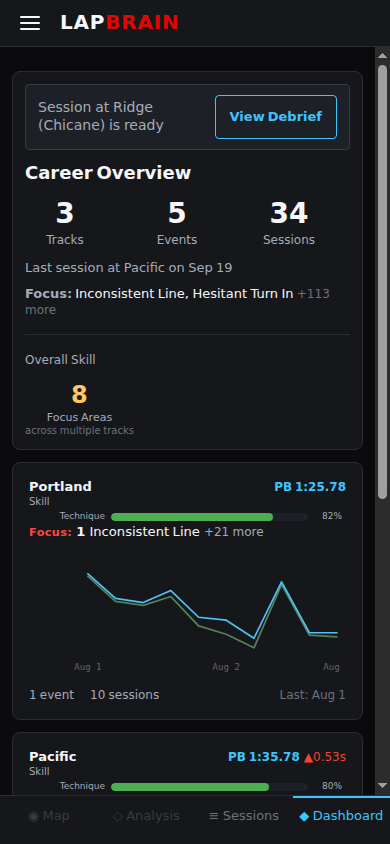
Once it is open, the debrief answers "What should I work on next?" with a ranked list when the session supports focus items. Start with the top one that fits your session plan.
What to do next
- Read your debrief: start with the wins, then focus on the top recommendation. See Reading Your Debrief.
- Open the named track area: inspect its map, phase breakdown, laps, and channels.
- Write it down: before your next session, note the one thing you'll focus on so it is easy to remember in the paddock.